Showing posts with label keep 5.1 audio track. Show all posts

Monday, November 17, 2014

How to Stream iTunes Movies via Plex Media Server?


---"I can't play video in iPad/iPhone/iMac with Plex"
---"I have a collection of purchased movies. Does Plex support iTunes DRM videos?"
---"I am trying to play iTunes purchased movies. When trying to play one of them it almost looks as if it is caching the movie. But wont play it. Any ideas?"

What is Plex Media Server?

Plex is a media playback system that makes it simple to share your movies, TV shows, music, pictures, and internet-based content. Introduced in 2009, Plex Media Server is used to host the content and plugins that are then streamed to various devices, such as TV, Xbmc, Aamazon Fire TV, Samsung Smart TV ans so on.


plex media server

Spent a whole day on streaming iTunes movies via Plex Media Server, but in vain? You need to know that Plex Media Server is unable to play iTunes movie because of the DRM protection. Before streaming your iTunes movies from computer to TV, tablets and all your mobile devices at home, you will need to remove DRM from the movies with a powerful DRM remover like with M4VGear.  


M4VGear DRM Media Converter helps you remove DRM from iTunes purchases and rentals at 20X fast speed, keeping the video quality same as original. By using M4VGear DRM Media Converter , you can seamlessly stream HD iTunes movies via Plex and watch your own movies conveniently on every devices in your house. What's more, you can keep your iTunes rental forever and backup iTunes movies for convenient access.
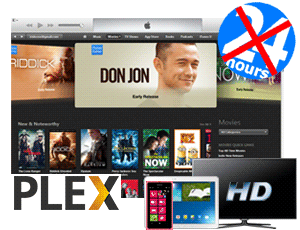
stream itunes movies via plex

M4VGear DRM Media Converter Features:
✔ Removes iTunes Purchases and Rentals DRM.
✔ Converts M4V to MP4 for widely usage.
✔ Retain 5.1 all subtitles (including CC) after DRM video conversion.
✔Perfect compatible with iTunes 12 and Mac OS Yosemite

✔ Keeps multi-language audio tracks (including 5.1 AC3 audio track).

How to convert iTunes movies with M4VGear?


Step 1. Download and install the latest version of M4VGear on your Mac. Please note, M4VGear supports Mac OS X 10.8 10.9 and 10.10.


>> Download Latest Version of M4VGear Here <<


Step 2. Launch M4VGear, Click "Add Files" icon, then you will be directed to iTunes default library automatically. Choose the iTunes movies you want to remove DRM from, then click "OK". You are allowed to import iTunes movies in batch.


click add button


Step 3. Manually choose audio tracks, subtitles you want for the output MP4 videos. AC3 Dolby 5.1 surround, Closed captioning (CC) can also be present here.


set audio tracks and subtitles


Step 4. Click the "Convert" button to start converting. After conversion, click the "History" button on the upper right and you can find the well converted vidoes.
start converting m4v to mp4


The well converted iTunes videos are free from any restriction now, you can stream them via Plex Media Server.

Tuesday, November 11, 2014

How to Mirror iTunes Videos to TV with a Roku

Tech giants like Google, Amazon, and Apple all have their own compelling living room devices, but Roku remains most people’s favorite overall streaming platform. If you want to settle on Roku, you need to figure out the two mainstream streamers of Roku: Roku 3 and Roku Streaming Stick.

Roku 3: The best overall choice

Price: $100, £80

Release date: March of 2013

Comments: With excellent interface and speedy processor, Roku 3 is quicker and more responsive than any other streaming box. More than 1,000 channels are supported, including Netflix, Amazon Instant, Hulu Plus, MLB.TV, Amazon Cloud Player, and Youtube. All in all, Roku is the best streaming player yet, which has tons of content sources, lightning-fast performance, and an innovative remote with built-in headphone jack. But Roku 3 does not work equally well within Apple ecosystem owing to the Apple's FairPlay Protection.

Roku Streaming Stick: Value packed


Price: $50, £50


Release Date: March of 2014

Comments: The Roku Streaming Stick goes head-to-head with Google’s Chromecast. With Over 1,200 apps available, a real remote and an onscreen interface, Roku performances better than Chromecast. But compare to Roku 3, it takes a longer time to boot up YouTube. It doesn’t have the neat headphone jack feature which is available on the Roku 3. And just like Roku 3, it cannot mirror iTunes videos to TV thanks to the DRM restriction.
Stream Videos via Roku

iTunes to Roku: Mirror iTunes Videos to TV via Roku without Restriction

As stated above, both Roku 3 and Roku Streaming Stick cannot mirror iTunes videos to TV due to the DRM Protection. To stream both iTunes purchases and rentals freely to Roku, the first thing you should do is to remove DRM protection and convert iTunes M4V videos to regular formats supported by Roku.

M4VGear iTunes to Roku Converter (Windows/ Mac Version) is a powerful yet professional DRM removal tool which can strip the DRM protection from both iTunes rentals and purchases, thus to convert the locked M4V movies and TV Shows to DRM-Free MP4 format supported by Roku with Dolby 5.1 Surround Sound and 100% lossless quality preserved.

Tutorial: How to Crack iTunes DRM with 5.1 Audio Track Preserved?

Step one: Equipment Preparation:
1. A computer with Windows OS or Mac OS
2. The latest version of iTunes
3. The latest version of M4VGear iTunes to Roku Converter

>> Download Latest Version of M4VGear for Mac Here <<
>> Download Latest Version of M4VGear for Windows Here <<

Step two: Import iTunes videos to M4VGear
Click to launch M4VGear. Then you will go to the main interface of M4VGear, click "Add" button or "Add Files" icon to import the movies or TV Shows into the program.
add m4v files

Tip: If you want to add iTunes rentals to the program, you must make sure that the rentals are in valid period.


Step Three: Set output directory and start conversion
Click the button on the lower-left of interface to choose output directory, if you od not change directory manually, the converted files will be saved in the default folder. Then click "Convert Now" button to remove DRM and convert iTunes M4V to MP4 format supported by Roku. After conversion, you can find the files you've converted by clicking the "History" button.

Convert

Tip: After the progress bar showing up, iTunes will be shown and hide itself in a flash, and please don't control iTunes during converting, or conversion may fail.

Now, go and enjoy the iTunes videos on TV via Roku as you want.

Attention Please: The trial version of M4VGear is limited to converting the first 5 minutes of the whole video. You can purchase the full version to crack the time limitation.

Sunday, November 9, 2014

How to convert iTunes videos with 5.1 audio track (AC3 Audio Track) preserved?

Enjoying iTunes videos with 5.1 audio or AC3 audio track at your home cinema will be a really fantastic experience. However, iTunes videos are protected by DRM and it causes one problem, that is, these iTunes videos can't be played on other devices except for Apple devices. Even though there are some iTunes movie removal software on the market that can help strip DRM and convert to DRM-free videos, but until now, none of them could keep the AC3 audio track after conversion. This puzzles a lot. How to remove the DRM to get the unprotected videos while keeping the original 5.1 surrounding audio? Any solution?
M4Vgear DRM Media Converter is the fastest DRM remover in the world which can remove DRM from iTunes videos at 20X faster speed and at the same time, keep 5.1 audio of iTunes videos. After converting with M4VGear, you will get DRM-free iTunes videos with 5.1 audio and lossless quality. Let us see how to keep 5.1 audio when removing DRM from iTunes videos below.

Things you will need before removing DRM

Program: M4VGear DRM Media Converter
System Requirements:
iTunes: the latest version
Operating system:
Mac OS X 10.8 & 10.9 & 10.10
Windows XP, Vista, 7, 8 (32-bit & 64-bit)

Steps for Removing DRM from iTunes Videos

1: Launch M4VGear and iTunes will be opened automatically.
2: Click "Add" button on the upper left to choose iTunes videos from iTunes library and then click "OK" to apply.
add itunes videos for converting
3: Click the Setting button of the loaded video to choose audio track you want to save. You can choose to save All Audio that includes stereo and 5.1 audio or only 5.1 audio.
choose 5.1 audio track
4: Click "Convert Now" button on the bottom right to start removing DRM from iTunes videos. After the conversion is finished, open output directory to find the DRM-free MP4 videos with 5.1 audio in MP4 format. Now you can stream these videos with 5.1 audio with Apple TV or play them on Windows Media Player.
start converting and open output directory

Dolby Digital, AC3 Audio and 5.1 Audio

Dolby Digital, or AC3 Audio is the common version of Dolby Digital technology containing up to six discrete channels of sound. The most elaborate mode in common use involves five channels for normal-range speakers (20 Hz – 20,000 Hz) (right, center, left, right surround, left surround) and one channel (20 Hz – 120 Hz allotted audio) for the subwoofer driven low-frequency effects. Mono and stereo modes are also supported.
5.1 audio component

The above mentioned five full bandwidth channels and one low-frequency effects channel (the "point one") make up 5.1 audio, which is the most popular audio system in commercial cinemas and home theaters. Dolby Digital, SDDS, DTS, and Pro Logic II all use 5.1 audio system. Besides, 5.1 is also the standard surround sound audio component of digital broadcast and music.